
Broker accounts and sync keys
Categories
Broker accounts and sync keys
journl. keeps each IBKR account you import as its own trading account, next to one Manual trades account for trades you enter by hand. You manage them in Account center → Trading. The Interactive Brokers trading journal page covers syncing several IBKR accounts side by side.
Trading accounts
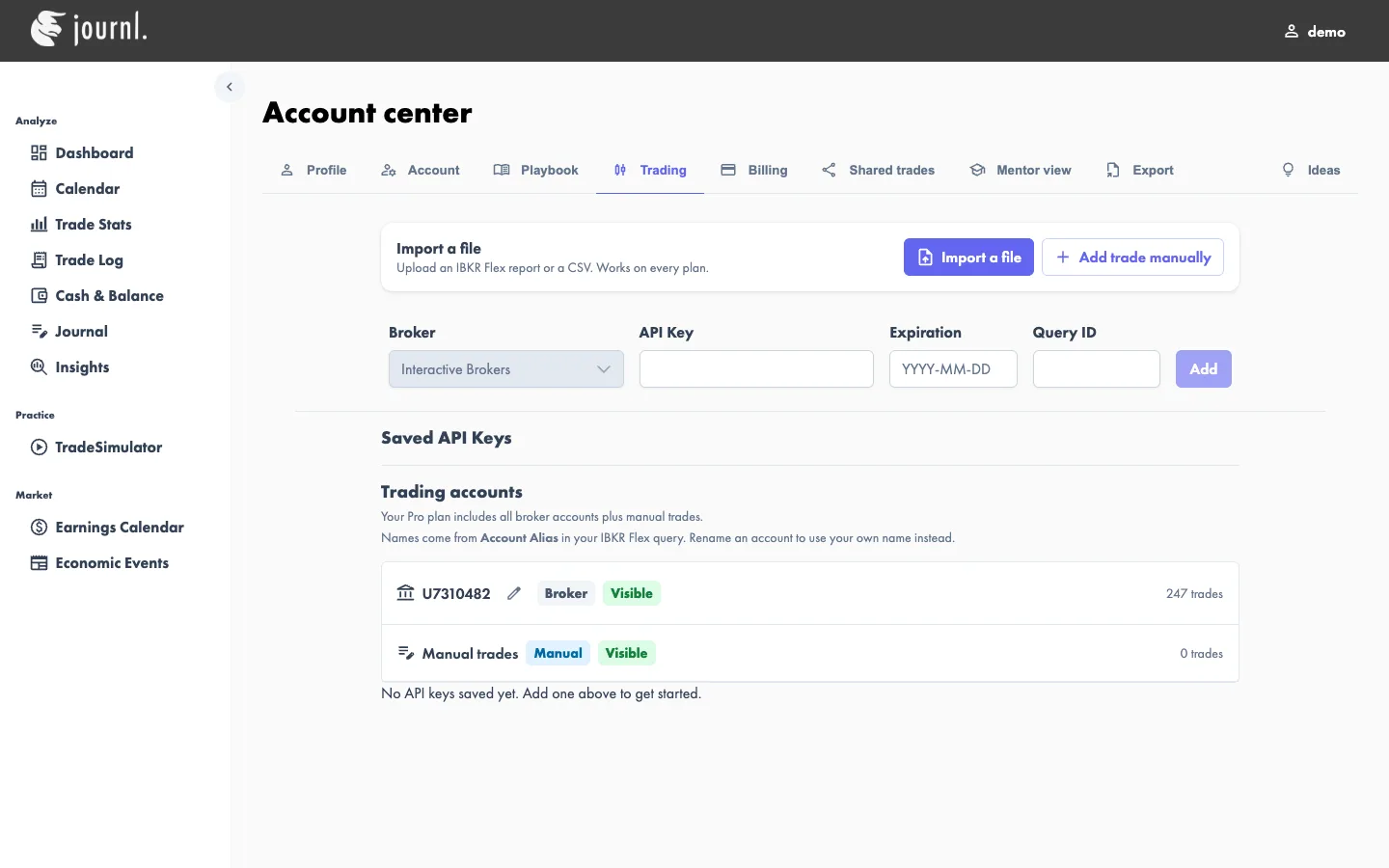
Each account shows its name and IBKR account number, a Broker or Manual tag, whether it is Visible or Locked, and how many trades it holds.
Account names
journl. uses the alias you gave each account in IBKR, for example OptionsTrading instead of the account number. It comes in with your trades when the Flex Query or CSV includes the Account Alias field, and a later sync picks up a changed alias.
- Rename: click the pencil next to an account, type a name and press Enter. Your name is kept even when IBKR's alias changes.
- Back to the IBKR alias: clear the name and save.
- An account with no alias and no name shows its IBKR account number.
How many accounts your plan includes
- Free: one broker account from CSV uploads, plus Manual trades. No auto sync connection.
- Basic and Premium: one broker account, which can also be connected for sync, plus Manual trades.
- Pro: every broker account you import, plus Manual trades.
If you import more accounts than your plan includes, the extra ones are marked Locked. Their trades are kept, just hidden, and come back when you upgrade.
Saved API keys
Each auto sync connection you add appears under Saved API Keys with its Query ID, an expiration status and the last sync time.
- Sync now: the sync icon fetches new trades right away.
- Expiration: the tag turns to a warning as the date you entered approaches. Generate a new Flex Token in IBKR and add it again before it expires.
- Delete: the trash icon removes the key. Trades already imported stay.
Choosing accounts on each page
The Dashboard, Calendar, Trade Stats, Insights and Export have an account selector in the top right. Leave it on All visible accounts or pick a single account to see its numbers alone.
Setting up the connection itself is covered in Auto sync.
Broker accounts and sync keys
journl. keeps each IBKR account you import as its own trading account, next to one Manual trades account for trades you enter by hand. You manage them in Account center → Trading. The Interactive Brokers trading journal page covers syncing several IBKR accounts side by side.
Trading accounts
Each account shows its name and IBKR account number, a Broker or Manual tag, whether it is Visible or Locked, and how many trades it holds.
Account names
journl. uses the alias you gave each account in IBKR, for example OptionsTrading instead of the account number. It comes in with your trades when the Flex Query or CSV includes the Account Alias field, and a later sync picks up a changed alias.
- Rename: click the pencil next to an account, type a name and press Enter. Your name is kept even when IBKR's alias changes.
- Back to the IBKR alias: clear the name and save.
- An account with no alias and no name shows its IBKR account number.
How many accounts your plan includes
- Free: one broker account from CSV uploads, plus Manual trades. No auto sync connection.
- Basic and Premium: one broker account, which can also be connected for sync, plus Manual trades.
- Pro: every broker account you import, plus Manual trades.
If you import more accounts than your plan includes, the extra ones are marked Locked. Their trades are kept, just hidden, and come back when you upgrade.
Saved API keys
Each auto sync connection you add appears under Saved API Keys with its Query ID, an expiration status and the last sync time.
- Sync now: the sync icon fetches new trades right away.
- Expiration: the tag turns to a warning as the date you entered approaches. Generate a new Flex Token in IBKR and add it again before it expires.
- Delete: the trash icon removes the key. Trades already imported stay.
Choosing accounts on each page
The Dashboard, Calendar, Trade Stats, Insights and Export have an account selector in the top right. Leave it on All visible accounts or pick a single account to see its numbers alone.
Setting up the connection itself is covered in Auto sync.